Relight
one photo. one virtual light. add a grade and a lens, then adjust where the light lands and how much it changes the photo.
the Light tab
loading photo…
photo: source photo / Unsplash
Light
light colour
what each dial changes
Power
The strength of the added light. At 0%, no light is added. Higher values brighten the illuminated area; very bright surfaces can lose detail.
Start around 30–55%. Reduce Power if skin or white surfaces become too bright.
Soft
How broadly the light spreads across the estimated surfaces. Low values concentrate the effect; higher values produce a softer, wider transition. This does not blur the photo.
Try 40–70% for faces. A lower setting makes a more concentrated patch of light.
Reach
How quickly the light weakens away from its position. Low values keep the effect local. High values brighten a wider area. It changes falloff, not the crop or lens focus.
Keep Reach low for one side of a face. Raise it for a room or a broad surface.
Mix
How much of the added lighting is blended into the graded photo. At 0%, the grade and lens remain but Relight contributes nothing. At 100%, the full added-light result is shown.
Use Mix to reduce the effect without changing its position, colour or spread.
position and colour
in the editor, turn Relight on in Light, then tap or drag on the photo to place the light. Neutral adds the least colour; Tungsten adds warm amber; Cool adds blue; Magenta adds pink; Green adds green. In the example above, left / right and top / bottom set the light’s position.
real photos / light off, light on
these are actual e8st renders, not generated before-and-after images. Both sides use the same source photo, grade, lens, focus and crop. Only Relight changes. The original-photo option also shows the unedited source, which has not been cropped.
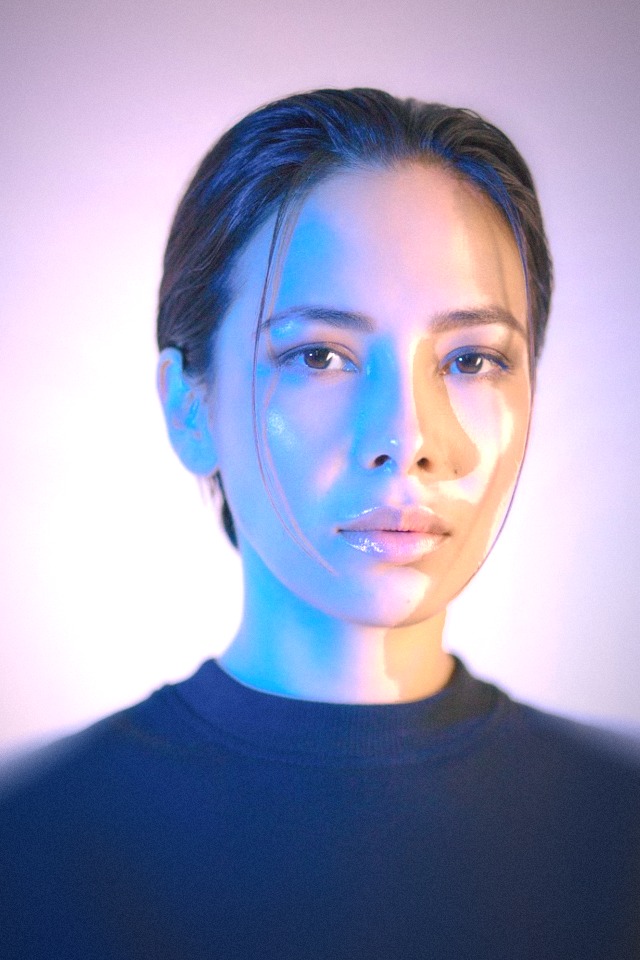
portrait / warm against blue
Smoke + 66mm f/2
before / light off
after / light on
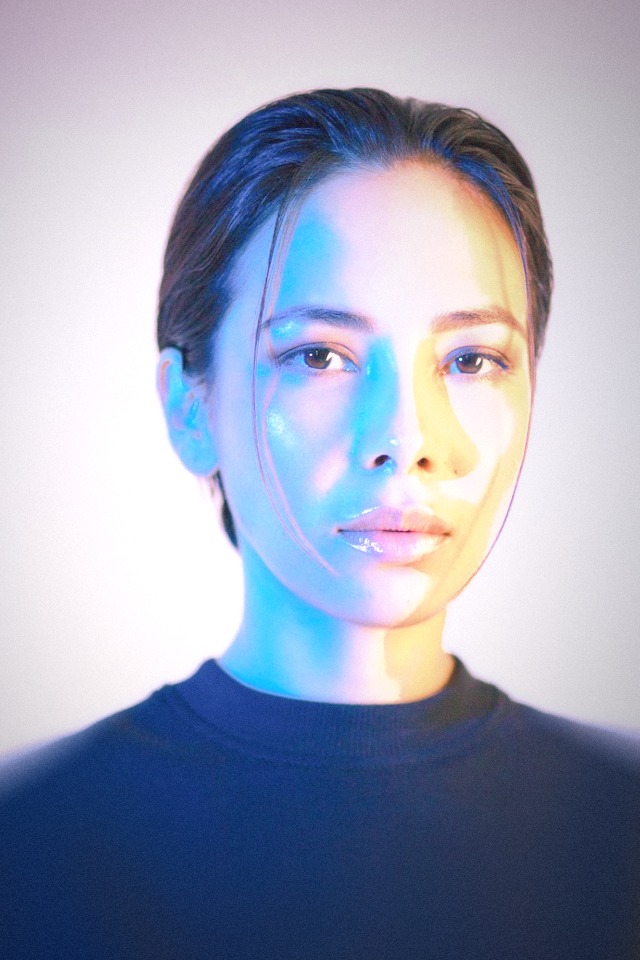
Smoke adds amber to the highlights. A tungsten light on the right lifts that side of the face against the existing blue light. 66mm f/2 adds a tighter crop and softer edges.
tungsten · power 65% · soft 45% · reach 35% · mix 80%
photo: source photo / Unsplash
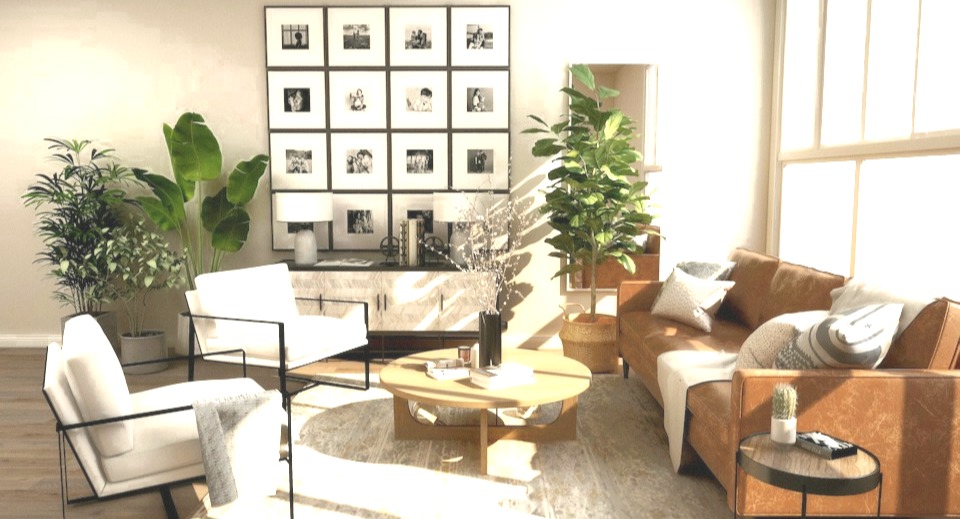
interior / cooler window light
Hush + Halo 21
before / light off
after / light on
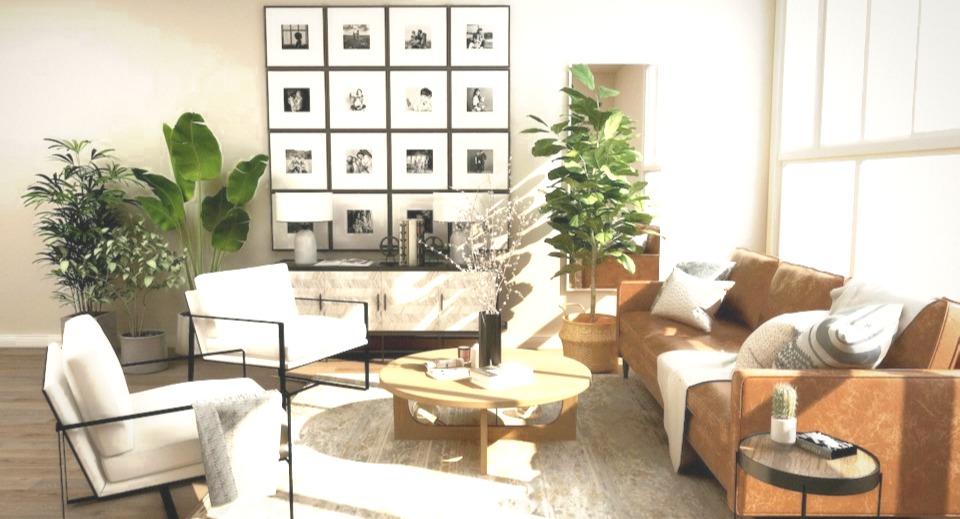
Hush keeps the room subdued. Cool light near the windows adds blue to the illuminated surfaces. Halo 21 keeps a wide view, with its own edge falloff.
cool · power 55% · soft 75% · reach 70% · mix 65%
photo: source photo / Unsplash
food / neutral overhead light
Shun + 100mm Macro f/2.8
before / light off
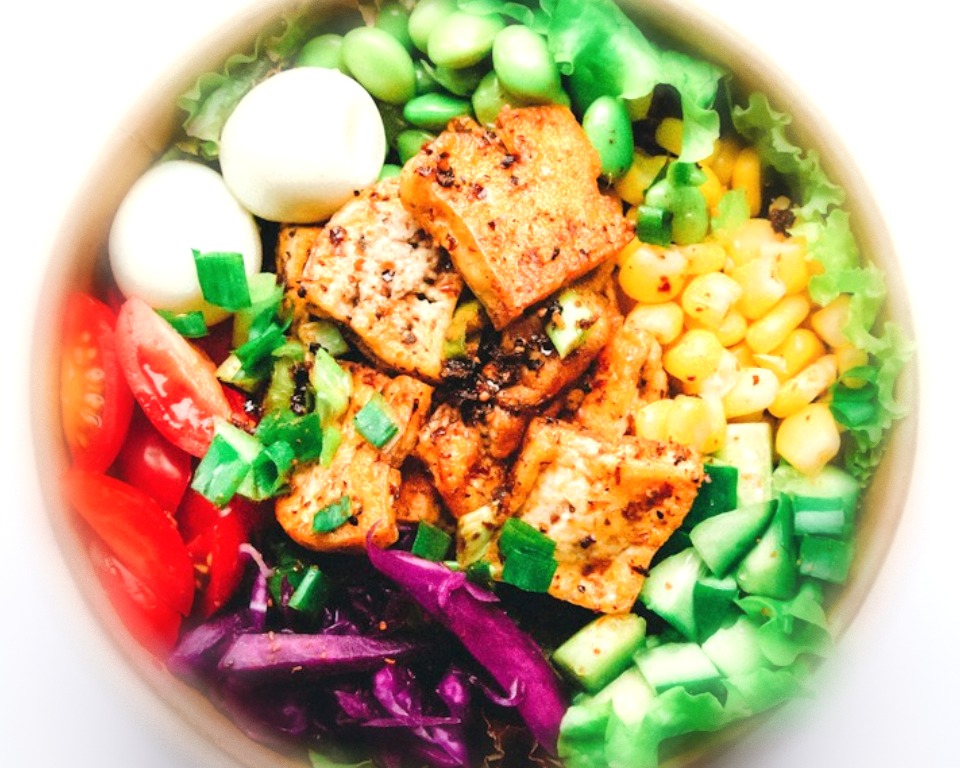
after / light on
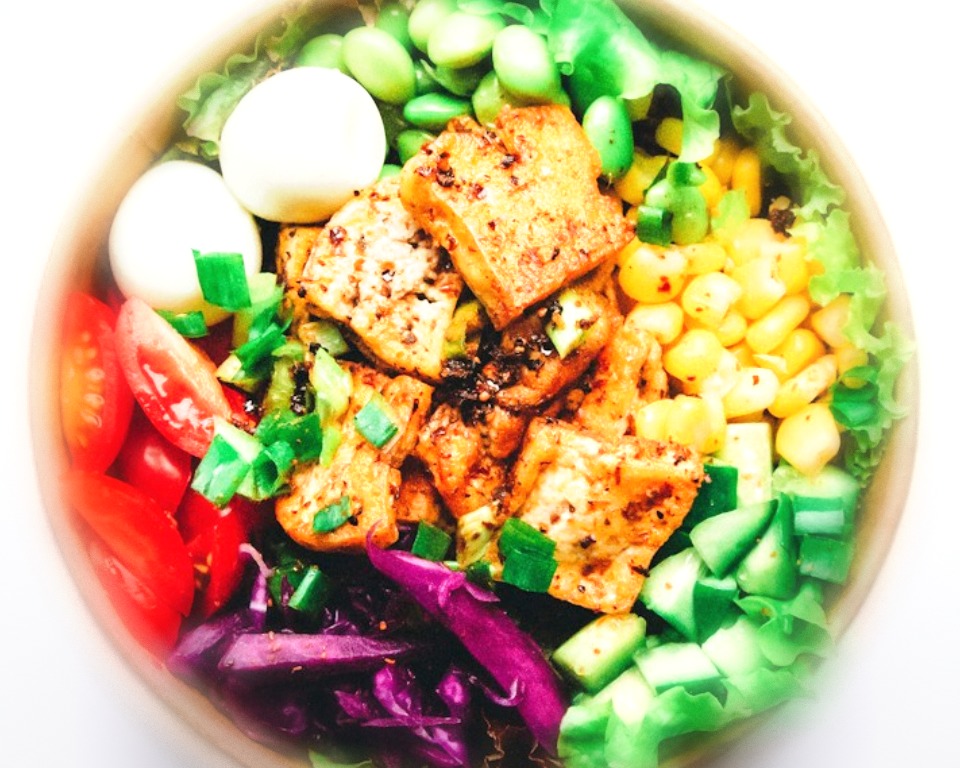
Shun is the restrained starting point for ingredient colour. Neutral light lifts the top of the bowl without a strong coloured tint. 100mm Macro f/2.8 crops closer to the food.
neutral · power 30% · soft 70% · reach 50% · mix 55%
photo: source photo / Unsplash
grades worth starting with
- Smoke + 66mm f/2 / tungsten
- warm highlights and a closer portrait crop. Keep Reach low when the existing background light is a different colour.
- Hush + Halo 21 / cool
- a subdued room with a wider view. Raise Soft and Reach for a gentle lift across walls and furniture.
- Shun + 100mm Macro f/2.8 / neutral
- a restrained food grade with a closer detail crop. Use low Power to avoid washing out bright ingredients.
- e8st + 75mm f/2 / neutral
- a balanced starting point for portraits. Try this before moving to stronger colour combinations.
- Bleed + 35mm f/1.4 / magenta or cool
- a stronger colour treatment for darker street photos. Start with low Mix; bright signage can clip when extra light is added.
what Relight does, and does not do
Relight adds light after the colour grade, so each grade responds differently. The lens keeps its crop, blur and optical character. It estimates surface depth from the photo; it does not reconstruct a complete 3D scene, remove existing light or create physically accurate cast shadows. It cannot recover detail already lost in the original highlights.
your first use on a photo downloads the depth model if it is not cached, then reads the scene on your device. The guide uses saved depth maps from these three photos for faster comparisons. Stills and silent Alive loops include Relight in the saved result. The guide previews Pro catalogue entries; Pro is still required to unlock them in the editor.
Open the editor